Graph element ELEMENT command
Commands in this namespace document operations on graph elements.
ELEMENT is used below as a placeholder for any of:
GRAPHINST element
GRAPHINST line
GRAPHINST bar
The element form uses the default element type of the graph widget:
Widget |
Default element type |
|---|---|
|
line |
|
bar |
|
strip |
|
polar |
The line and bar forms explicitly select the type when creating a new element:
.g line create voltage
.g bar create histogram
All element types share the operations documented on this page. Configuration options depend on the concrete element type and are documented separately for line, strip, bar, and polar elements.
Element names
Every element has a name that is unique within its graph widget.
.g element create signal1
Element names may not begin with -.
ELEMENT create returns the name of the newly created element.
Element data and axes
Elements contain X and Y data and are mapped through an X axis and a Y axis. The concrete element option reference describes the available ways to supply data, select axes, configure pens, error bars, labels, and other type-specific attributes.
Element data may be supplied directly as Tcl lists or through Rbc vectors. When an element refers to an Rbc vector, changes to that vector cause the graph to update automatically.
Display list
Graph elements have an explicit display list. The display list determines which elements are visible and the order in which they are drawn.
ELEMENT show queries or replaces this list:
.g element show
To display only selected elements:
.g element show {signal1 signal2}
Elements not present in the supplied list are hidden. An empty list hides all elements:
.g element show {}
The order of the supplied list is the drawing order. Elements later in the list are drawn above elements earlier in the list. The element that is added later to the graph inserted in the beginning of the list.
For example, plot two lines with area fill, default ordering:
.g element create signal1 -data {0 1 2 3} -areapattern solid -areaforeground purple
.g element create signal2 -data {0 3 2 1} -areapattern solid -areaforeground blue
.g element show
# -> signal2 signal1
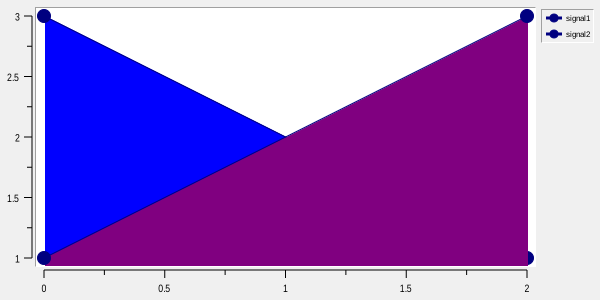
and in reverse order:
.g element show {signal1 signal2}
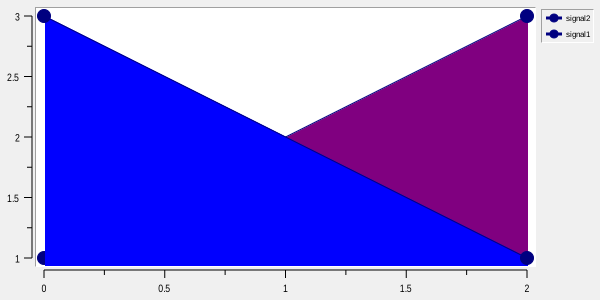
Unknown element names in a list supplied to show are ignored.
The element -hide option and display-list membership are kept synchronized. Configuring an element as hidden
removes it from the display list; making it visible adds it back to the display list.
-hideplot is intentionally different from -hide. Setting -hideplot yes suppresses plotting of the element
without removing it from the display list, so its legend entry remains available. A plot-hidden element does
not contribute to automatic axis limits, closest-element searches, element hit testing, PostScript element
output, or bar grouping and stacking calculations. Setting -hideplot no restores plotting without changing
display-list order.
The two options are independent. -hide yes still removes an element from the display list even when
-hideplot is set. Restoring the element with -hide no or ELEMENT show does not change its -hideplot
value.
Active elements and points
Elements and individual data points may be marked active. Active items are normally drawn using the element’s active pen.
With no arguments, ELEMENT activate returns the names of all currently active elements:
set active [.g element activate]
Supplying only an element name activates the complete element:
$graph element create signal1 -data {0 1 2 3 4 5} -color green
$graph element create signal2 -data {0 5 2 3 4 1} -color red

.g element activate signal1
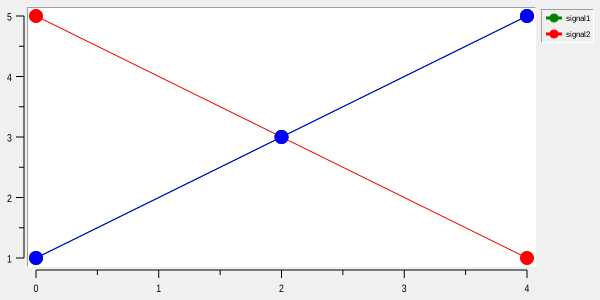
Supplying one or more indices activates only those data points:
.g element activate signal1 1 2
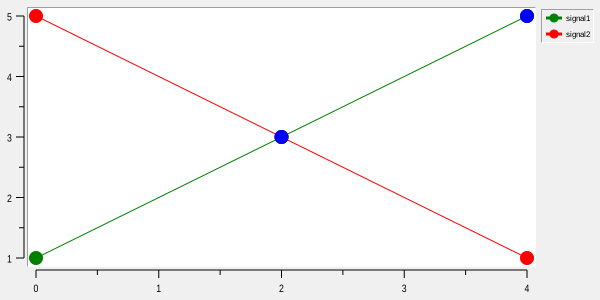
Each activation replaces the previous active-point selection for that element.
The special index end selects the final data point. Other indices may be Tcl integer expressions.
.g element activate signal1 end
ELEMENT deactivate clears the active state of the named elements.
Element bindings
Elements participate in the graph binding system.
Each element contributes the following binding tags:
its element name;
its element class, such as
LineElement,BarElement,StripElement, orPolarElement;any additional tags configured with the element’s
-bindtagsoption.
A binding may therefore apply to one specific element:
.g element bind signal1 <ButtonPress-1> {
    puts "signal1 selected"
}
or to an element class:
.g element bind LineElement <Enter> {
    puts "pointer entered a line element"
}
User-defined -bindtags can be used to bind several unrelated elements to the same behavior.
ELEMENT get current returns the element currently selected by this binding machinery.
Finding the closest element
ELEMENT closest finds the visible element or data point nearest to a window coordinate.
For example:
if {[.g element closest $x $y info]} {
    puts "element = $info(name)"
    puts "index   = $info(index)"
    puts "x       = $info(x)"
    puts "y       = $info(y)"
    puts "distance = $info(dist)"
}
The command returns 1 if a result is found within the search halo and 0 otherwise.
On success, the named Tcl array receives:
Array element |
Description |
|---|---|
|
Name of the closest element. |
|
Source data index associated with the result. |
|
X coordinate of the result in graph coordinates. |
|
Y coordinate of the result in graph coordinates. |
|
Distance from the requested window coordinate, measured in screen pixels. |
|
Optional symmetric error magnitudes at the source index. |
|
Optional absolute X error bounds at the source index. |
|
Optional absolute Y error bounds at the source index. |
Closest results optionally include error data from the reported source index: xerror and yerror are symmetric magnitudes; xlow/xhigh and ylow/yhigh are absolute endpoints from the corresponding options. A nonempty symmetric vector takes precedence over bounds on the same axis. A bounds pair is reported only when both endpoints are available and finite. Missing, short, non-finite or pending vector data is omitted. The six optional error fields are cleared on each completed search, including a miss. These values are not geometrically interpolated, transformed to another polar/Smith representation, or adjusted for stacked bars. They remain available when error bars are hidden or thinned. This applies to line, strip, polar and bar elements. The values describe configured source data, not screen distances.
For a line or Polar element configured with a valid -param mapping, the result array also contains param.
Its value is the parameter value associated with the source data index reported by index.
For example:
if {[.g element closest $x $y info]} {
    if {[info exists info(param)]} {
        puts "parameter = $info(param)"
    }
}
The param entry is present only while the parameter vector has exactly the same number of values as the element has data points. If attached Rbc vectors are resized independently and their lengths temporarily differ, the closest search still succeeds normally but param is omitted until the lengths match again.
For a bar element, the result array also contains the physical bounds of the selected mapped bar rectangle:
Array element |
Description |
|---|---|
|
Physical widget X coordinate of the left edge of the selected bar rectangle. |
|
Physical widget Y coordinate of the top edge of the selected bar rectangle. |
|
Physical widget X coordinate of the right edge of the selected bar rectangle. |
|
Physical widget Y coordinate of the bottom edge of the selected bar rectangle. |
These four values describe the final mapped rectangle that is actually used to draw the selected bar. They therefore reflect the current bar mode. For a stacked bar they describe only the selected stacked segment, while aligned and overlapping bars return the adjusted rectangle belonging to the selected element.
left, top, right, and bottom are physical widget coordinates, not graph coordinates. Their meaning
does not change when -invertxy is enabled: left and right always refer to physical widget X coordinates,
and top and bottom always refer to physical widget Y coordinates.
These array elements are returned only when the closest element is a bar element.
If no match is found, name is set to an empty value. Other array elements should only be used when the
command returns 1.
The default search halo is the graph’s -halo value.
closest accepts the following options:
Option |
Description |
|---|---|
|
Sets the maximum non-negative screen distance for this search. |
|
Measures distance along |
|
For line and strip elements, searches along the rendered trace when true instead of considering only data points. |
With -interpolate false, line, strip, and polar searches return actual source data coordinates.
With -interpolate true, the closest position may lie between source points. In that case x and y contain
the interpolated graph coordinates of the closest point on the rendered trace, while index identifies the
associated source segment.
When param is present, it follows that same source index. The parameter value is not geometrically
interpolated: param is the value from -param corresponding to index.
The -along and -interpolate options affect line, strip, and polar element searches. Bar elements are
searched against their rendered rectangles.
By default all visible elements are searched. One or more element names may be supplied after the options to restrict the search:
.g element closest $x $y info -halo 10 -interpolate yes signal1 signal2
-- may be used to terminate option processing explicitly.
Polar-element searches additionally report radius and angle. In Smith representation they also report Gamma and equivalent impedance/admittance information. See POLARELEMENT for the complete result set.
Element types
ELEMENT type reports the concrete class of an existing element. The current element classes are:
Result |
Element type |
|---|---|
|
line element |
|
bar element |
|
stripchart element |
|
polar element |
Polar elements are documented separately in POLARELEMENT.
There is no separate GRAPHINST polar and GRAPHINST strip element operations. Polar and strip elements are
created through the generic GRAPHINST element create operation when the owning widget’s default element type
is PolarElement or StripElement.
Configuration options are specific to the concrete element type:
LINEELEMENT - line elements;
STRIPELEMENT - strip elements;
BARELEMENT - bar elements;
POLARELEMENT - polar elements.
Copyright (c) George Yashin